Username and temporary password for Microsoft 365 sign in:
username = campus code+student number@ilsceducation.com (eg: dub101010@ilsceducation.com)
password = WelcomeYYYYMMDD (your birthday in reverse) (eg: Welcome19980529)
Campus Code – Dublin = DUB
Watch the video or use the slides to follow instructions 
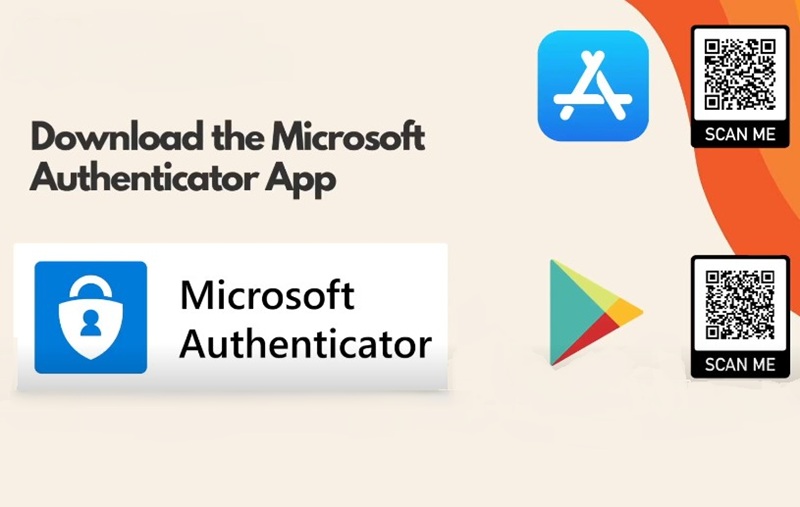
Microsoft Authenticator app setup
Use the QR Code or click on a link to download the authentic Microsoft Authenticator app:
Apple App Store Android Google Play
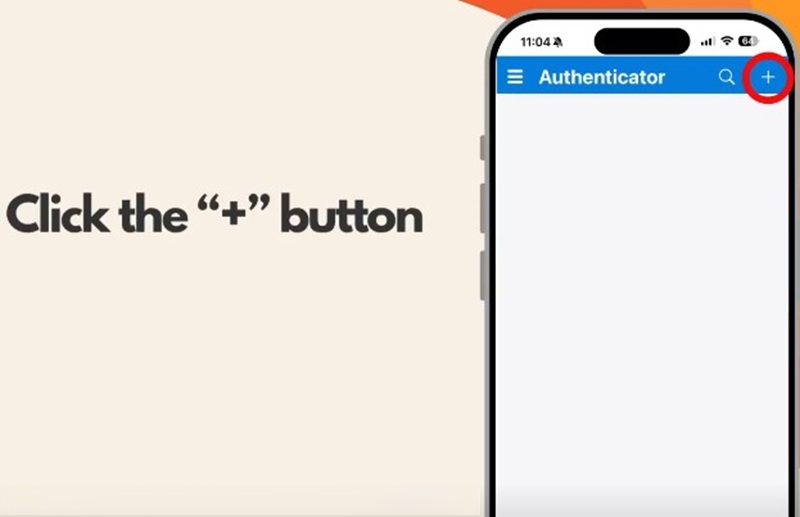
Start adding your account
Open the app and click on the plus sign to add your account
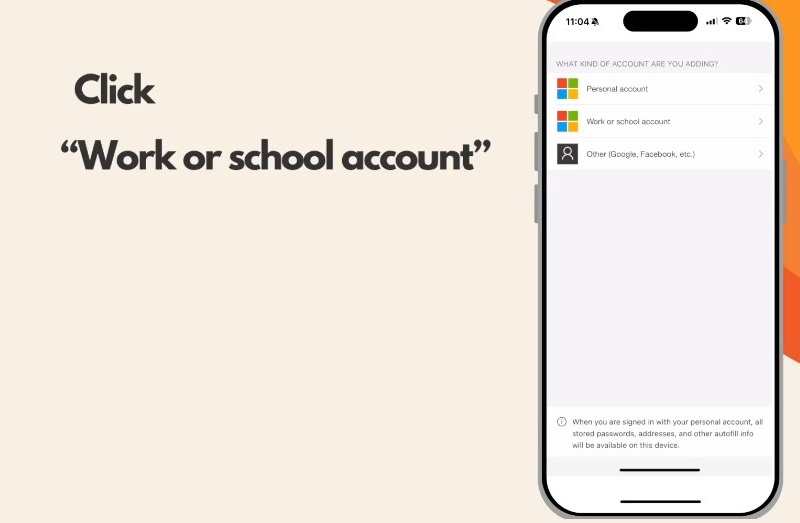
Choose Account Type
Choose ‘Work or school account’
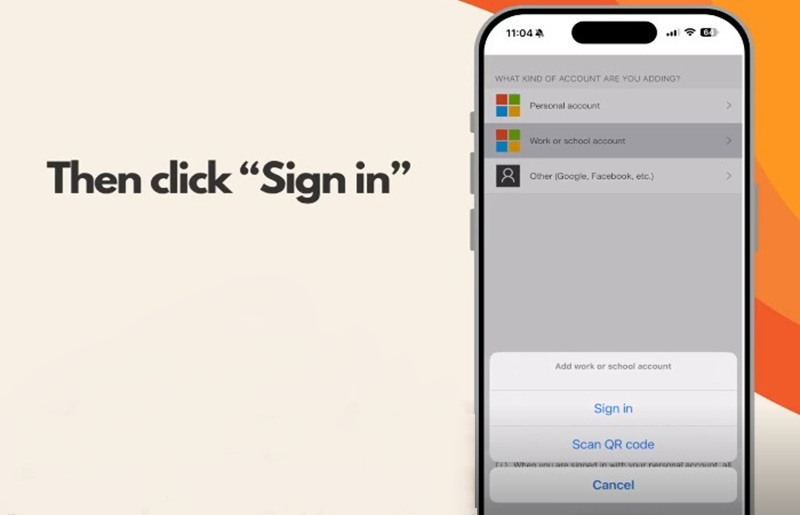
Click Sign In
Time to ‘Sign In’ – have your username and temporary password ready!
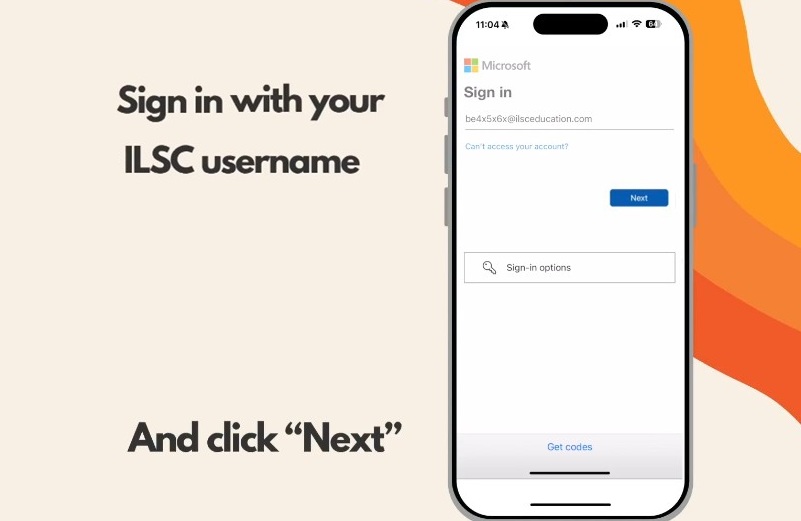
Enter your Username
Username = campus code + 012345 + @ilsceducation.com
Then click ‘Next’
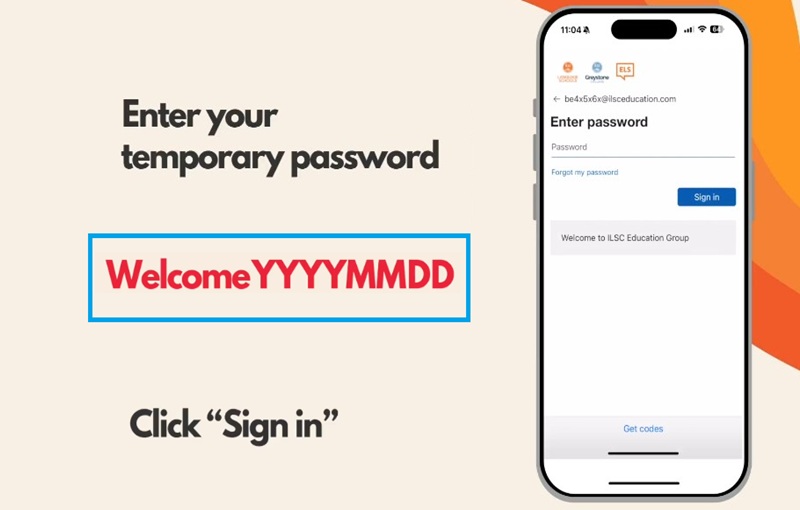
Enter your Temporary Password
WelcomeYYYYMMDD – your birthday in reverse
Then click ‘Sign In’
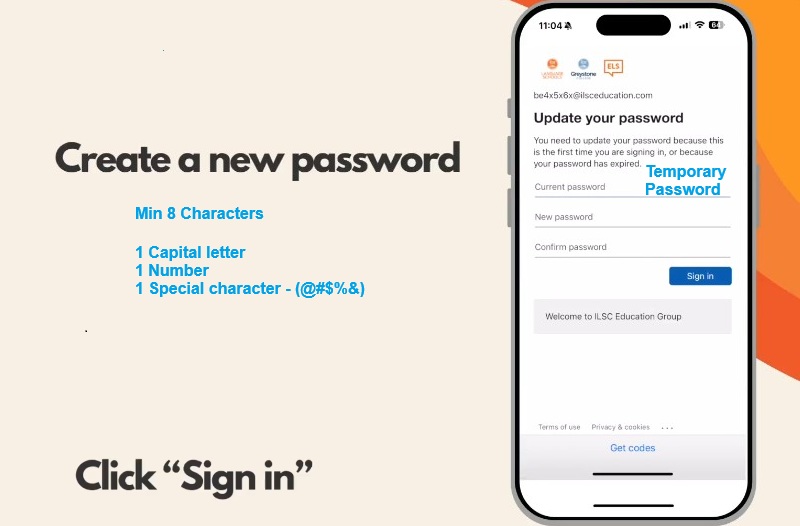
Create a new password
Current Password = Temporary Password (Welcome########)
New password – not your name or birthday
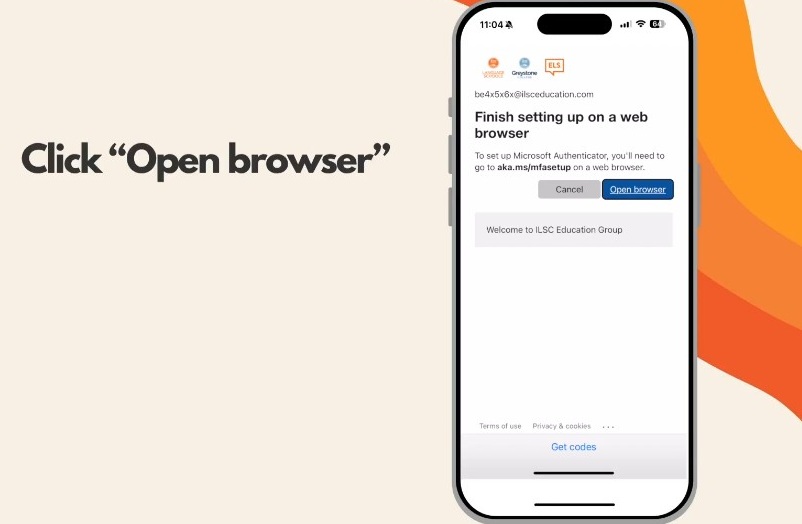
Don’t stop – keep going
You must complete the setup in the browser…
Click ‘Open browser’
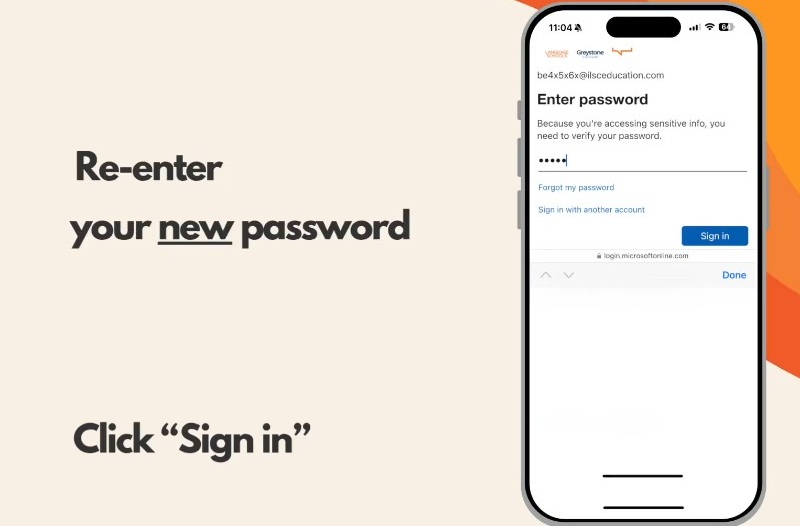
Re-enter new password
Enter your new password and click ‘Sign in’.
You can see your username at the top of the page.
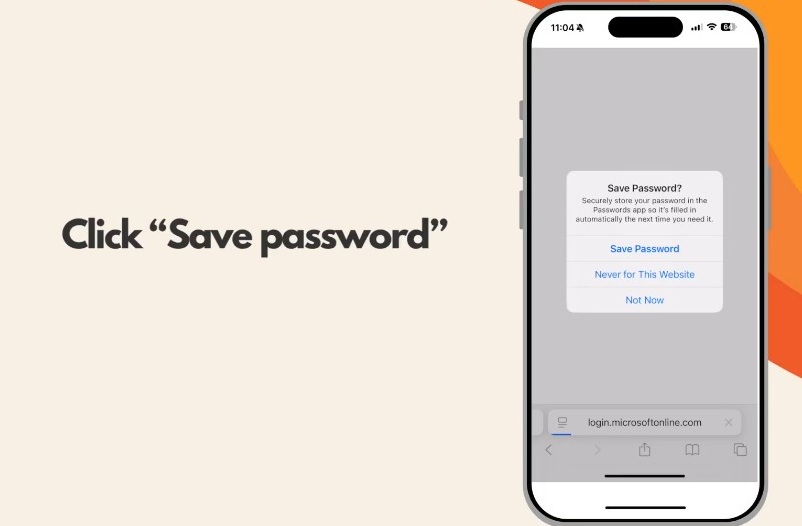
Save the password
We recommend saving the password in your phone
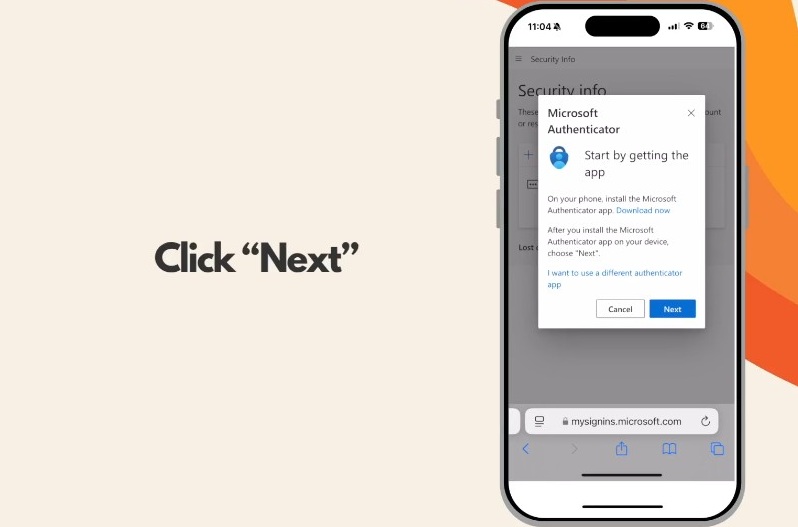
Authenticator Pop-up Page
Click Next on this page
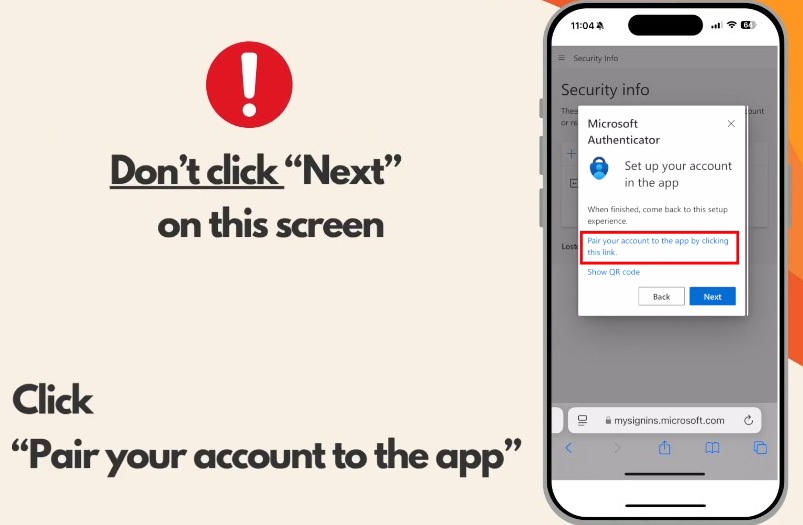
Authenticator Pop-up Page 2
DON’T click ‘Next’ here.
Click on ‘Pair your account to the app’
Without this step, your setup is not complete.
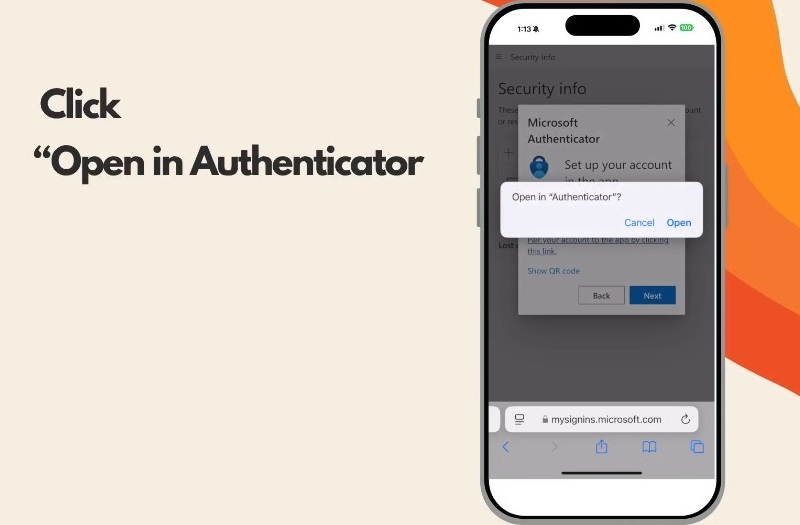
Open in the Authenticator App
Click ‘Open’ to return to the Authenticator app
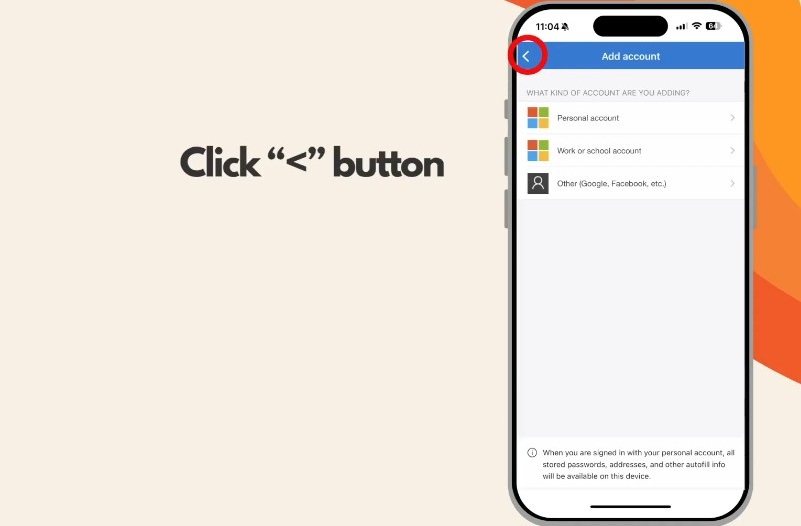
Go Back to the account page
You will see the ‘Add Account’ page in the Authenticator App.
Click the ‘back’ button (<) at the top to return to the Account list.
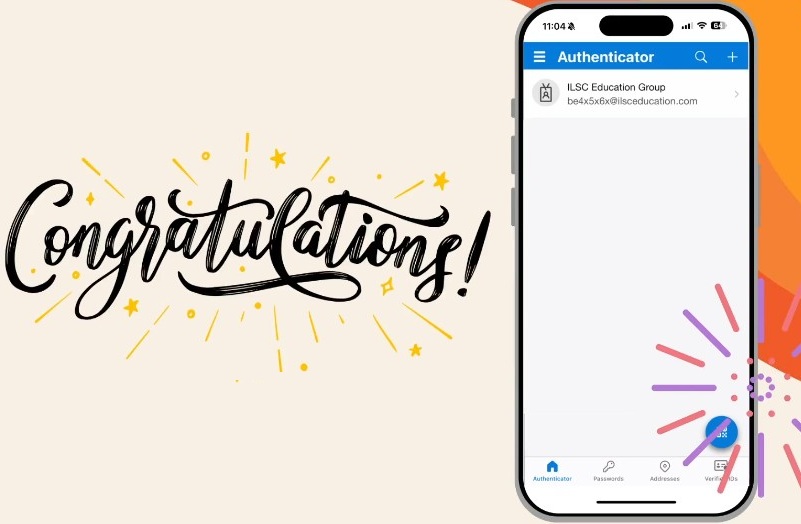
Authenticator Setup complete!
Well done! Your account is set up. Now you can sign in to any Microsoft 365 apps and the school app, myILSC using your username and new password.
Go to your ILSC Outlook Inbox