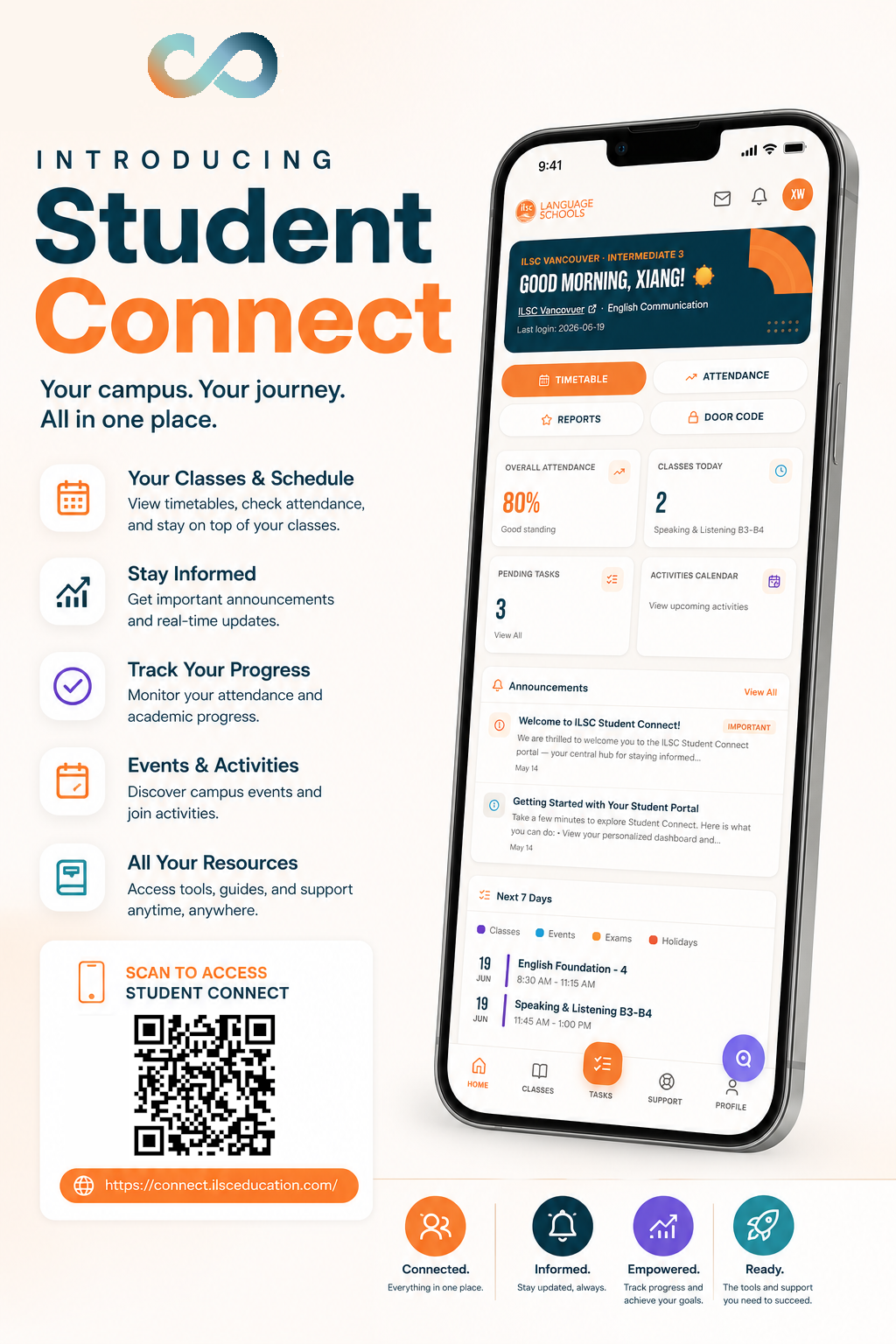
CONNECT

Welcome to your new app: Connect

ILSC Education Group students can find everything they need in one easy-to-access location

Launching for new students in ILSC Vancouver and ILSC Melbourne in Session 6 Week 3

FAQ and TECH Support

What is my username?

You can find your username in your Digital Access Welcome Email (28 days before Start Date).

Your username consists of 3 parts:

  1. Your campus code
  2. your 6-digit student number (add a 0 at the beginning if your number is 5-digits)
  3. @ilsceducation.com

Your username is
Campus Code + 6-digit StudentNumber + @ilsceducation.com.
If your student number has only 5 digits, add a 0 at the beginning of the number.

Campus codes are as follows:

City ILSC Campus Code Greystone College Campus Code Greystone Institute Campus Code
Adelaide AE AV
Brisbane BE BV BH
Dublin DUB
Melbourne ME MV
Perth PE PV
Sydney SE SV
Montreal QE QG
Toronto TE TG
Vancouver VE VG
HELLO (Online) KE
City ELS Campus Code
Chicago CHI
Cincinnati CIN
Cleveland CLE
Houston HOU
Los Angeles County LAC
Melbourne MLB
Nashville NSH
Philadelphia PHI
San Francisco north Bay SFN
St Paul SPA
St Petersburg SPE
My username or password is incorrect

Check your digital access email.

Is your student number correct? If not, contact your agency.

Is your birthdate correct?

If your birthdate (YYYYMMDD) is NOT correct in the temporary password, use the Contact Tech Support button to ask for password reset.

I haven’t received my digital access email

Is your Start Date in less than 28 days? Use the Contact Tech Support button to ‘request digital access information’. If your Start Date is more than 28 days, please wait. Your account isn’t active yet.

I’m concerned about digital security

ILSC Education takes digital security very seriously. Our technology team works hard to protect your data at all times. Learn more in our Digital Security page in the Student Connect portal and in our Tech FAQ.

My Connect App password doesn’t work

Your password the Connect app is the same as your Microsoft 365 password. Did you complete Step 1? Did you complete Microsoft Authenticator setup?

If you need to change your password, go to www.office.com and click Forgot password. If you have already logged into Microsoft 365, please use this link. Change password.

Please only use this for help with your digital access before you start studying.

For other support, contact your agency or your campus.

Back to top