Step 1: Activate your Microsoft 365 Account
If you have not received your digital access email yet, see the FAQ below for more information. If your Start Date is within 28 days, you can try to activate your account, following the steps below.
ELS, ILSC, Greystone College and Greystone Institute enforce multi-factor authentication for security reasons and to support our single-sign on to all platforms.

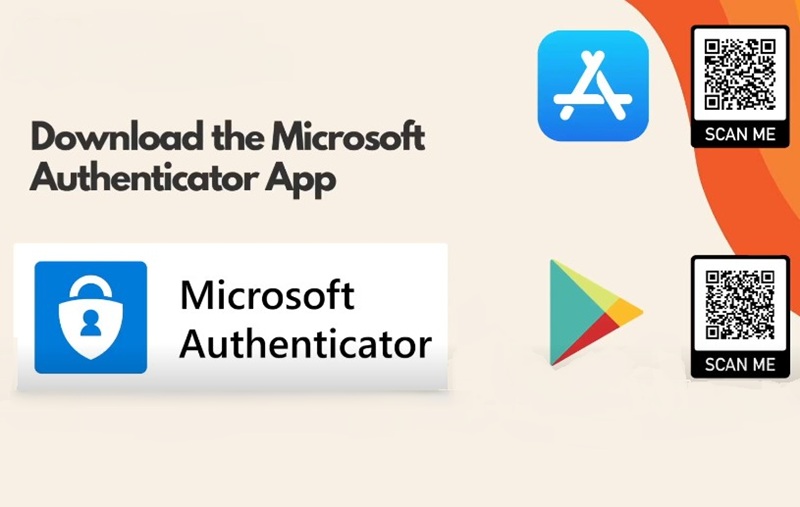
Microsoft Authenticator app setup
Use the QR Code or click on a link to download the authentic Microsoft Authenticator app:
Apple App Store Android Google Play
 Allow notifications for full functionality
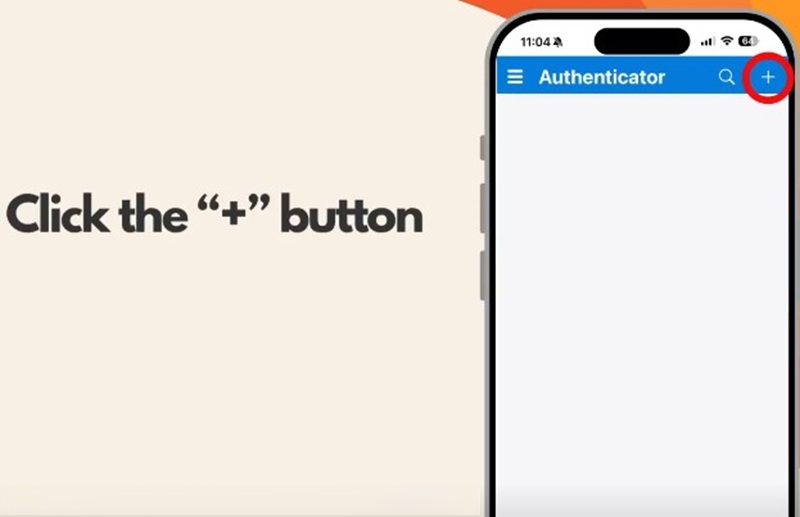
Start adding your account
Open the app and click on the plus sign to add your account
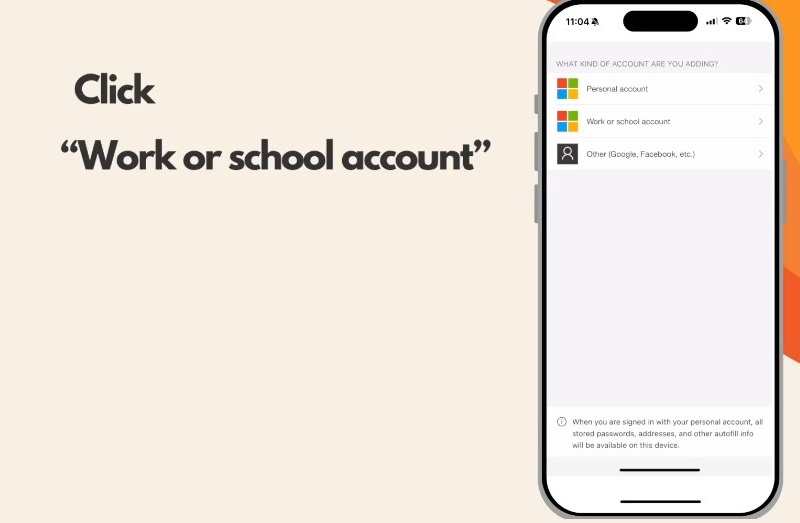
Choose Account Type
Choose ‘Work or school account’
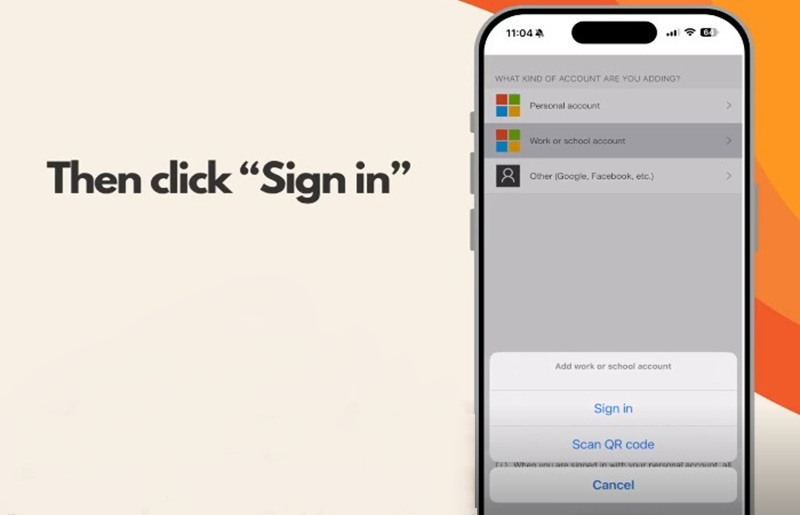
Click Sign In
Time to ‘Sign In’ – have your username and temporary password ready!
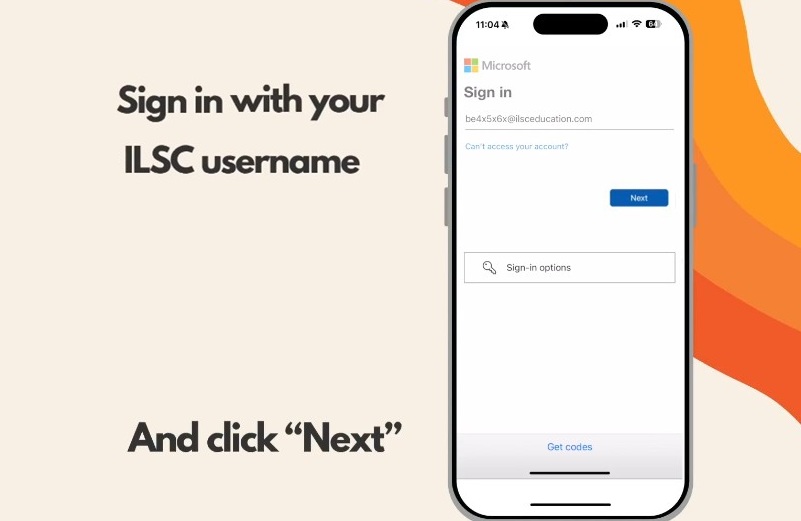
Enter your Username
Username = campus code + 012345 + @ilsceducation.com
Then click ‘Next’
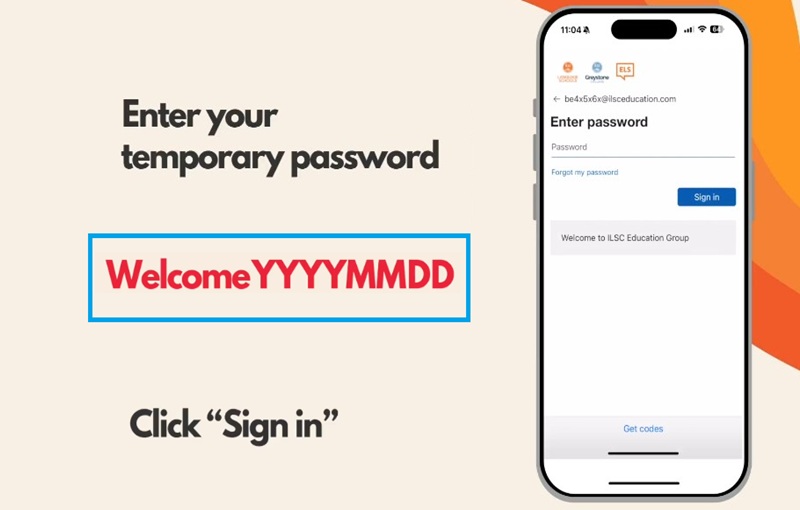
Enter your Temporary Password
WelcomeYYYYMMDD – your birthday in reverse
Then click ‘Sign In’
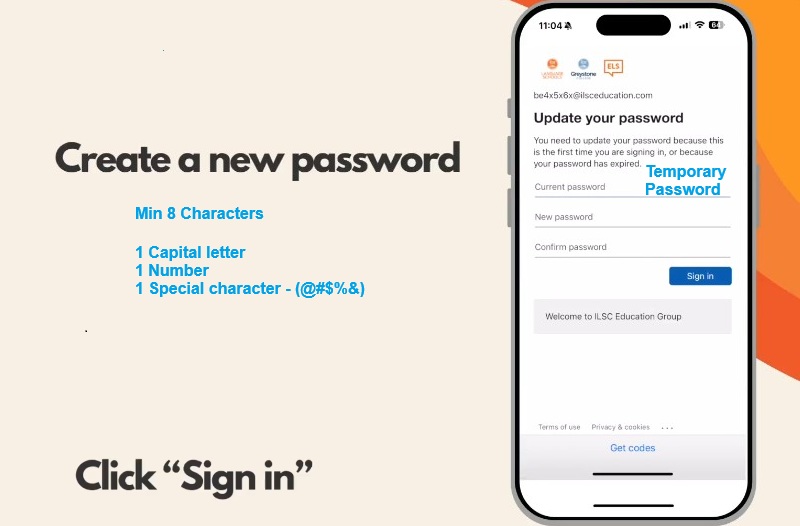
Create a new password
Current Password = Temporary Password (Welcome########)
New password – not your name or birthday
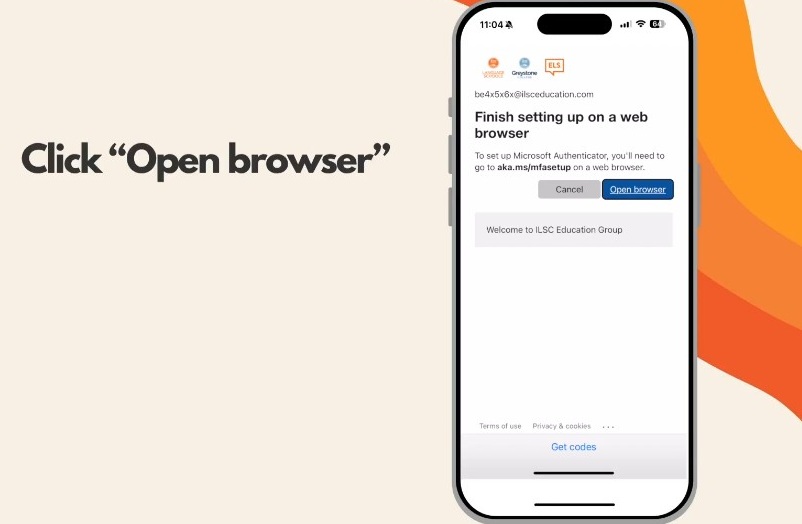
Don’t stop – keep going
You must complete the setup in the browser…
Click ‘Open browser’
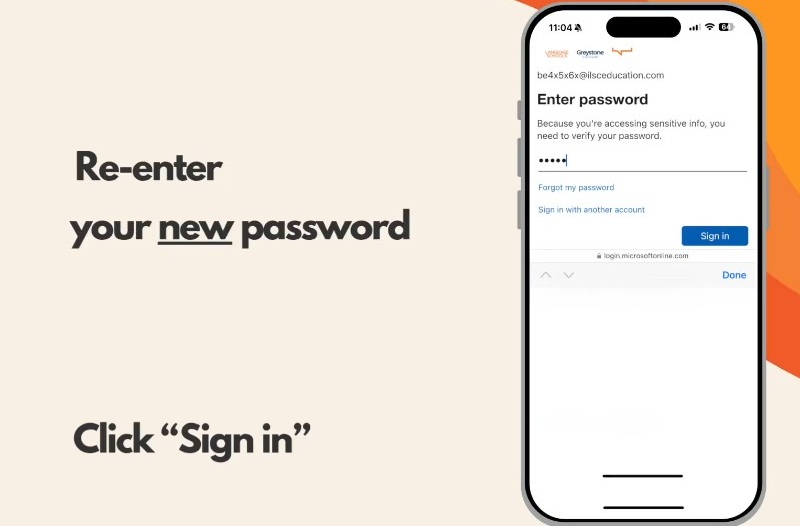
Re-enter new password
Enter your new password and click ‘Sign in’.
You can see your username at the top of the page.
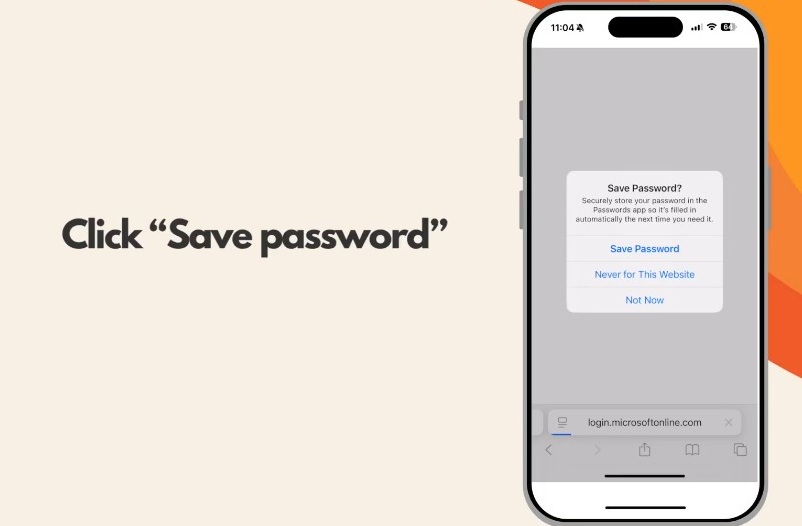
Save the password
We recommend saving the password in your phone
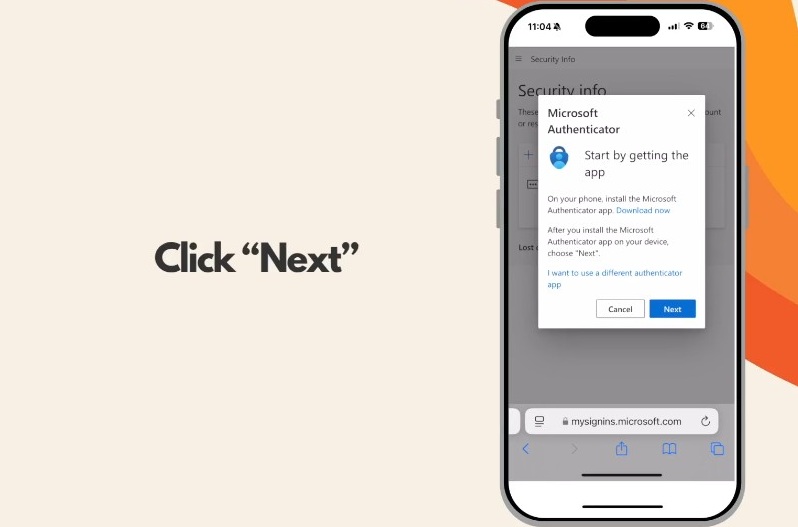
Authenticator Pop-up Page
Click Next on this page
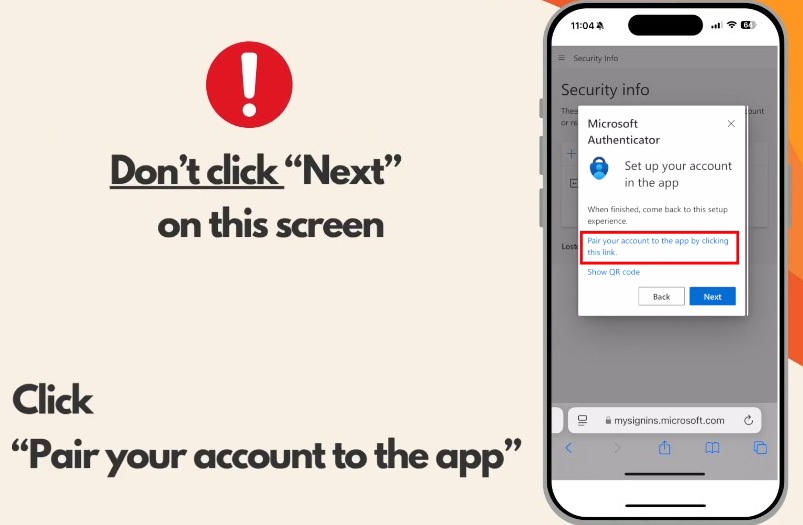
Authenticator Pop-up Page 2
DON’T click ‘Next’ here.
Click on ‘Pair your account to the app’
Without this step, your setup is not complete.
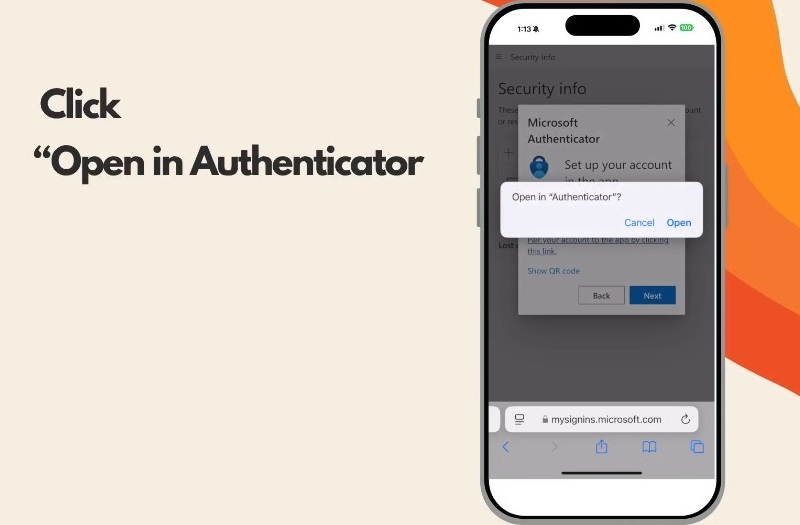
Open in the Authenticator App
Click ‘Open’ to return to the Authenticator app
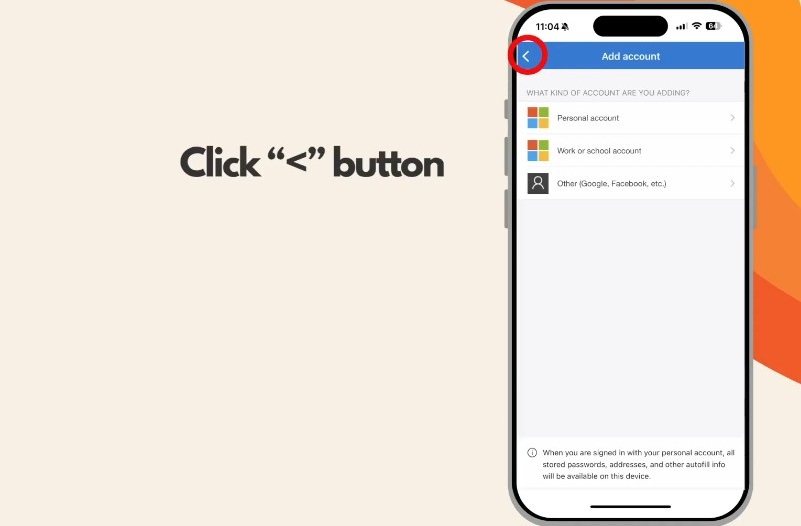
Go Back to the account page
You will see the ‘Add Account’ page in the Authenticator App.
Click the ‘back’ button (<) at the top to return to the Account list.
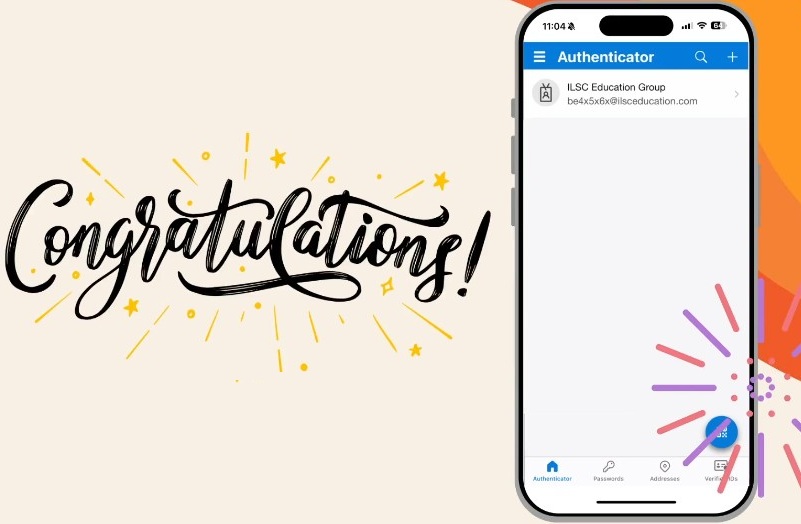
Authenticator Setup complete!
Well done! Your account is set up. Now you can sign in to any Microsoft 365 apps and the school app, myILSC, myGreystone, or myELS, using your username and new password.
Written Instructions
Download the Microsoft Authenticator app and allow notifications.
Apple App Store | Google Play Store
Add a Work or School account using your username and temporary password from your Digital Access email.
Username:
Campus Code + Student ID + @ilsceducation.com
Temporary Password:
Welcome (always in English) followed by your birthday in the format: yyyy + mm + dd
Example: Welcome19950829
Your new password must:
- Be at least 8 characters long
- Include 1 number
- Include 1 CAPITAL letter
- Include 1 special character (e.g. $ @ % !)
- Not include your name
IMPORTANT: Don’t stop here!
Save your password to your device and click Next on the first Authenticator pop-up page.
Do NOT click “Next” on the second Authenticator page.
Instead, click Pair your account to the app.
Open the Authenticator app, click the Back button (<), and you’re done!
Got a problem? FAQ/Support
Step 2: Login to Connect, your school app
All students studying with ILSC, Greystone College, Greystone Institute or ELS can access Connect, the student app. On your phone, tablet, laptop or computer browser, search for connect.ilsceducation.com and log in using your activated Microsoft 365 account.
For more details, check out the Connect App page.
You will be able to access all your student information and academics in one location, as well as submit requests to Student Services, access the Live Chat, and manage your study planning in one calendar.
Go to Connect

Got a problem? FAQ/Support
Step 3: Download and login to Microsoft Teams

ILSC Dublin and ELS Language School Students do not use Teams at this time
At ILSC, Greystone College and Greystone Institute, we use Teams for online orientations, online classes, digital communication, and collaboration.
This is your final step in the digital setup. You can download the new Teams app on your phone, tablet or computer. We recommend computer for online classes.
Login using your @ilsceducation.com username and the new password from Step 1.
See our Teams at ILSC Education page to learn how to find your class link for online classes.
Got a problem? FAQ/Support


WELCOME + Digital Access Information
Within 28 Days of your Start Date
You will receive an email confirming your Start Date and Course, and your Digital Access information. Login to your Microsoft 365 account first (see Step 1), download your app (Step 2 and Step 3) and explore your Student Portal.
All pre-arrival emails will come from ILSC Education Student Connect.
Language LEVEL CONFIRMATION
Within 15 Days of your Start Date
You may receive a Placement Test invitation and reminders to confirm your English or French level if not done already.
ORIENTATION INFORMATION EMAIL
Within 10-15 Days of your Start Date
You will receive information about your schedule and your Orientation session. Don’t forget to login to Microsoft 365, check out the Student Connect portal and download the Teams app.
GETTING READY
What you need to do
Have you completed all your required documentation and forms? Go to the Orientations Page and click on your school to see what you can do before your Start Date. Visit the Student Connect portal and check the Ready to Start at ILSC or Ready to Start at Greystone College list, or Ready to Start at ELS Language Centers.
FINAL FOLLOW-UPS
Within 4 Days of your Start Date
You will receive Contracts and follow-up emails if there are any incomplete steps.

Now’s the time!
Ready to start classes? Do you know when your Orientation is? Have you downloaded your Apps? Have you explored the Student Portal?
Have you explored the new Connect App?- You can find your timetable and classroom information in the Connect app. Access the app in Step 2.
-
 Your Microsoft 365 account includes an email address. You can access the inbox here after you activate your account.